Scan to Google Drive
CapturePoint 6 files every scan into Google Drive, with its details filled in.
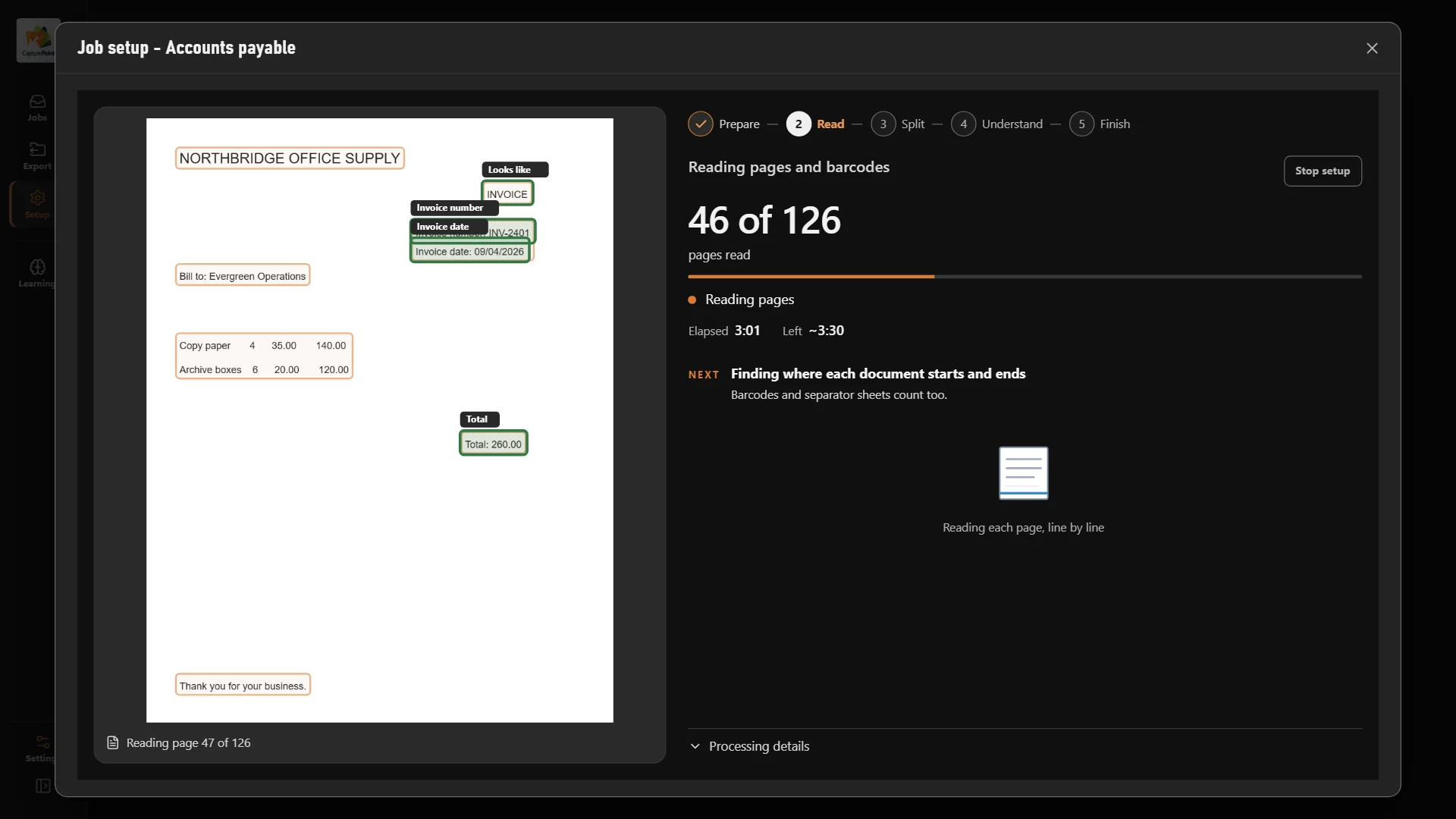
Scan a mixed stack or drop in files. CapturePoint 6 splits it into documents, reads each one on your PC, names it from what it found and sends a searchable PDF to the Drive folder you choose, with the values it read written into the file’s details.
The free trial starts the first time you open it. No form to fill in.
A folder full of scans is not the same as documents you can find.
Scans arrive as one long PDF per batch.
Each document becomes its own PDF, split where it really starts.
File names like doc_0815.pdf tell nobody anything.
Names and folders come from what it read: type, vendor, date, number.
The vendor and total are only on the page image.
The values go into the file’s details, and the PDF text is searchable.
Uploads fail quietly and someone redoes them.
Documents wait and retry. Nothing is overwritten or sent twice.
How it works
From the scanner to a named, described file in Drive.
- 01
Scan or import
Scan with the TWAIN scanner you have, or drop in PDF, TIFF, JPEG, PNG, BMP or GIF files.
- 02
Split and sort
It finds where each document starts and what it is: invoice, purchase order, statement, W-9 and so on.
- 03
Read and check
Fields and line items are read on the PC. Anything it is unsure of waits for a quick review; Ctrl+Enter confirms.
- 04
File to Drive
The searchable PDF goes to your Drive folder in its own subfolders and name, with its values in the file’s details.
One invoice, start to finish
What Google Drive gets from a single invoice.
The sample invoice on the right was read on the PC. Here is what lands in Drive.
The file
With naming set to document type, then vendor, then date and number, it is filed under the folder you picked as:
Invoice / Northbridge Office Supply / 2026-09-04_INV-2401.pdf
The description in Drive’s details panel
One line per field, in the order the document type lists them. The first lines read:
Vendor: Northbridge Office Supply
Invoice number: INV-2401
Invoice date: 09/04/2026
Due date:
Purchase order: PO-1031
Total: 480.00
CapturePoint did not find a due date on this invoice, so the line stays empty until someone fills it in during review. The same values are stored as properties on the file and written inside the PDF.

Built around the way Drive is organized.
- Sign in to Google Drive from CapturePoint: Google’s sign-in page opens in your browser, and the card shows the account when you are done.
- Pick My Drive, a folder someone shared with you, or a shared drive you belong to. Search at the top, or make a new folder right in the picker.
- Each document type can land in its own folders, built from the job’s naming: by type, by vendor, by month, whatever you choose.
- Test delivery puts a small PDF in the folder and removes it, so you know it works before real documents go.
- If someone moves the folder to the trash, CapturePoint says so in plain words, and you choose another folder and send those documents there.
- Documents go straight from the PC to Google Drive. There is no Ademero server in between.
- The job’s main export still happens too: a folder on your network or Content Central keeps its copy, and Drive gets the same PDF.
Setting it up for the first time?
Our step-by-step guide covers planning folders and ownership, connecting Drive, naming files so they sort well, and how people find documents later.
Questions about Google Drive
Can it send to a shared drive?
Yes. The folder picker shows My Drive, folders other people shared with you, and the shared drives you belong to. You can make a new folder from the picker too.
Where exactly do the values go?
Into the file’s description, one “Name: value” line per field, which people see in Drive’s details panel. They are also stored as properties on the file, and written inside the PDF itself.
Will Drive search find these documents?
CapturePoint sends searchable PDFs, which carry the words on the page as text. The file name and the description hold the values too, so a vendor name or invoice number finds the document.
Drive allows two files with the same name. Does that cause duplicates?
No. CapturePoint files a second document with a taken name as -2, then -3, the same way it names the local copy. It never overwrites and never sends the same document twice, even when an upload is interrupted and runs again.
Do the line items go to Drive?
Drive gets the document’s fields. If you need the line-item rows in another system, the folder export’s data file has them, next to every other value.
Does my scanner need to support Google Drive?
No. CapturePoint 6 scans from TWAIN scanners on a Windows 10 or 11 PC, or imports PDF, TIFF, JPEG, PNG, BMP and GIF files, and does the upload itself.
Keep reading
- Guide: scan to Google DriveThe full setup, step by step, with pitfalls to avoid.
- CapturePoint 6Scanning, reading, review and learning on your own PC.
- Every CapturePoint 6 destinationFolders, Content Central, SharePoint, Dropbox, Nucleus One.
- CapturePoint help libraryHow-to articles at help.ademero.com.
See a stack of paper arrive in Drive, named and described.
Download CapturePoint 6 and try the accounts payable sample job, or book a free demo and we will connect it to your Drive with you.