Pillar guide · Document AI
Intelligent document processing (IDP): what it does, and how to choose a tool
How software turns a pile of mixed documents into checked, filed data: the six jobs every IDP tool does, how it differs from OCR and templates, where it pays off, and the questions to ask before you buy.
For operations and finance leads who process documents by the hundred, and the IT person who has to decide where those documents are allowed to go.
Intelligent document processing, usually shortened to IDP, is software that reads business documents the way a trained clerk does. It looks at a stack of invoices, claims, bills of lading or HR forms, works out what each one is, pulls out the values you need, checks them, and hands over clean data together with a filed copy of the document. A person only sees the items it was unsure of.
This guide explains what happens inside that process, how IDP differs from the OCR and template tools many teams already own, and how to test a tool on your own documents so the result of your trial actually predicts the result in production.
What intelligent document processing is
The useful definition is about the output, not the technology. You put documents in. You get back structured data (the vendor, the claim number, every line of a table) and a good document (split correctly, typed, searchable, named and filed). Anything in between is the tool's problem.
Three things separate IDP from older capture software:
- It handles variety. Different vendors, different form versions, different layouts of the same document type, without someone drawing a template for each one.
- It knows when it is unsure. Each value carries a confidence, and values below the bar you set wait for a person instead of flowing through as quiet mistakes.
- It improves with use. When a person corrects a value, the next document like it should need less help.
The six jobs, step by step
Product names differ, but every IDP tool does the same six jobs in roughly this order. When you compare tools, compare them job by job.
- 01
Classify
Decide what each page is: invoice, purchase order, credit memo, W-9, statement. Classification drives everything after it, because each type has its own fields and rules. A good tool can also say “I do not recognize this” and set the page aside. - 02
Split (separate)
Find where each document starts and ends in a scanned stack or a long PDF. A three-page invoice followed by a one-page credit memo must become two documents. A wrong split is the most expensive error in the chain, because every field after it is read from the wrong pages. - 03
Extract
Pull the values: header fields such as numbers, dates, names and totals, and tables such as invoice line items. Values are shaped as they are read, so a date is stored as a date and an amount as money, whatever the print looked like. - 04
Validate
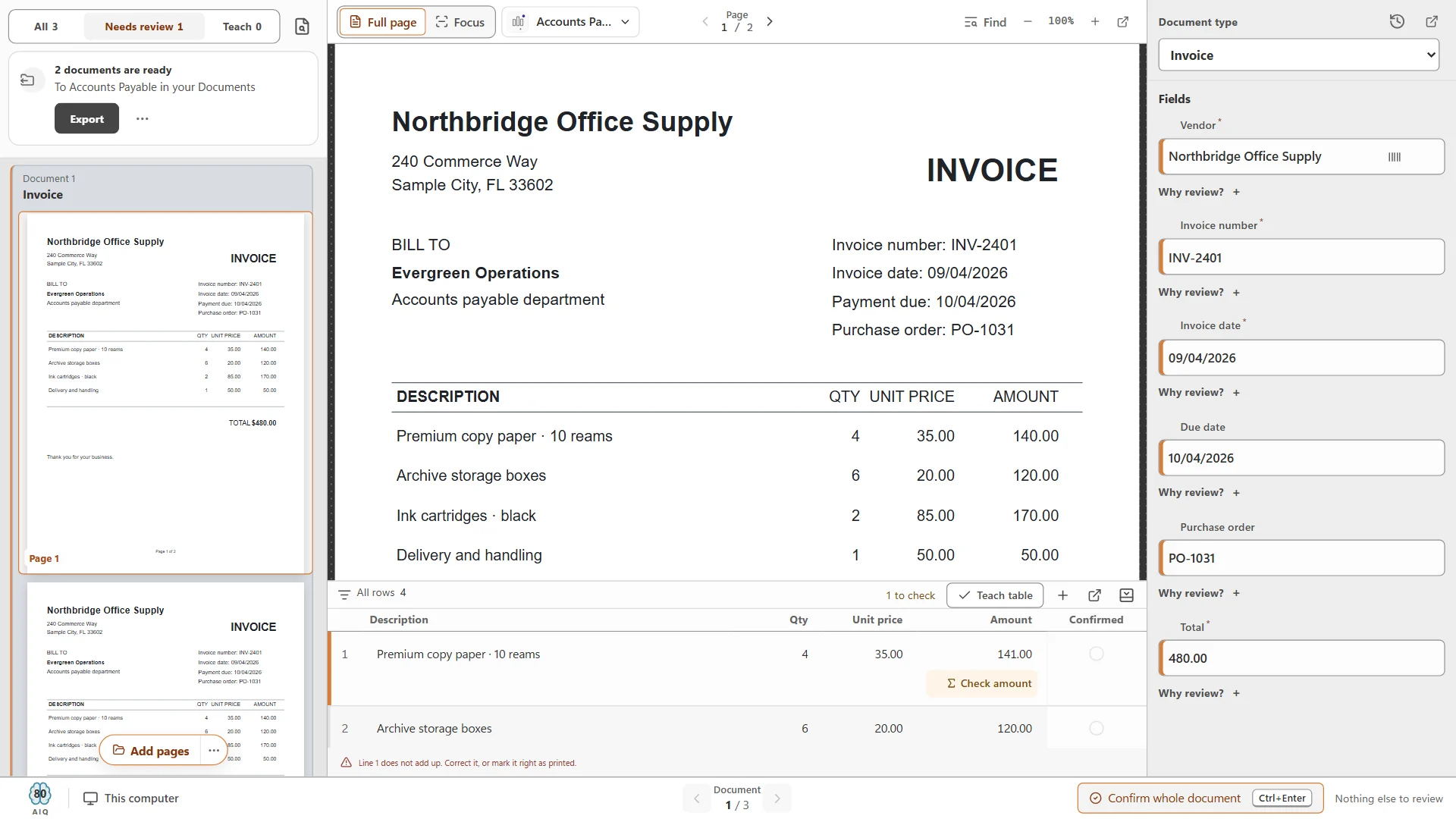
Check the values. Required fields present, formats correct, line items adding up to the total, values found in your own lists (vendor names, account numbers). Validation is what turns “probably right” into “checked”. - 05
Human review
Show a person only what needs one, with the reason: missing, low confidence, failed a check. Review should be one screen with the page beside the values, and corrections should teach the tool. - 06
Export
Deliver the document (usually a searchable PDF, or PDF/A for records) and the data (a data file, an API call or a connector) to where the work continues: a folder, a document system, an accounting system or another application.
How IDP differs from OCR and from templates
Buyers often own one of the older approaches already. Here is what each does, and where it runs out.
What it produces
- OCR:
- Text, often as a searchable PDF.
- Templates (zonal capture):
- Values read from fixed areas of the page.
- Intelligent document processing:
- Typed documents plus checked field and table data.
How it knows where a value is
- OCR:
- It does not. It reads everything.
- Templates (zonal capture):
- Someone draws a box where the value sits.
- Intelligent document processing:
- It learns from examples, using the words and the layout around the value.
New vendor or layout
- OCR:
- No change; still just text.
- Templates (zonal capture):
- A new template, drawn and maintained.
- Intelligent document processing:
- Learned from examples; unsure values go to review.
Splitting a stack
- OCR:
- No.
- Templates (zonal capture):
- Usually separator sheets or barcodes.
- Intelligent document processing:
- Finds document boundaries from the content itself.
Tables and line items
- OCR:
- Text only, rows often scrambled.
- Templates (zonal capture):
- Hard; fragile when rows vary.
- Intelligent document processing:
- Rows and columns extracted and checked.
Knows when it is wrong
- OCR:
- No.
- Templates (zonal capture):
- Rarely.
- Intelligent document processing:
- Yes: confidence per value, with a reason.
Best fit
- OCR:
- Making archives searchable.
- Templates (zonal capture):
- One form that never changes, at high volume.
- Intelligent document processing:
- Many layouts, mixed stacks, data that must be right.
| OCR | Templates (zonal capture) | Intelligent document processing | |
|---|---|---|---|
| What it produces | Text, often as a searchable PDF. | Values read from fixed areas of the page. | Typed documents plus checked field and table data. |
| How it knows where a value is | It does not. It reads everything. | Someone draws a box where the value sits. | It learns from examples, using the words and the layout around the value. |
| New vendor or layout | No change; still just text. | A new template, drawn and maintained. | Learned from examples; unsure values go to review. |
| Splitting a stack | No. | Usually separator sheets or barcodes. | Finds document boundaries from the content itself. |
| Tables and line items | Text only, rows often scrambled. | Hard; fragile when rows vary. | Rows and columns extracted and checked. |
| Knows when it is wrong | No. | Rarely. | Yes: confidence per value, with a reason. |
| Best fit | Making archives searchable. | One form that never changes, at high volume. | Many layouts, mixed stacks, data that must be right. |
Templates are not obsolete. If you process one government form that has not changed in ten years, a zone on the page is simple and reliable, and separator sheets are a dependable way to split stacks. The trouble starts when the document mix grows: each new layout is another template to build, and each layout change quietly breaks one. IDP exists for that mix.
Where IDP pays off (and where it does not)
The return comes from removed typing, fewer errors that travel downstream, and faster turnaround. It is strongest where:
- Volume is steady and documents vary. Accounts payable is the classic case: the same fields on hundreds of vendor layouts. Freight paperwork, insurance claims, mortgage files and HR onboarding share the pattern.
- Stacks are mixed. Mailrooms and scanning desks that receive several document types together gain from automatic classification and splitting even before extraction.
- Tables matter. Line items, statements and rate sheets are slow to key by hand and easy to get wrong.
- Downstream systems need clean data. An accounting system, a claims platform or a document library is only as good as the values put into it.
It pays off less when volume is tiny (a few documents a week), when the documents are mostly free-form letters with no fields to pull, or when nobody downstream uses the data. In those cases a good scanner, searchable PDFs and sensible file naming may be all you need; our guide to naming and filing scanned documents automatically covers that.
How to evaluate an IDP tool: a practical checklist
Demos use the vendor's best documents. A trial on your own documents is the only result that predicts production. Before you start, collect a test set: your top senders, a handful of one-off senders, a few crooked or faint scans, your longest multi-page document, and one or two documents that should be rejected. Write down the correct values for the fields you care about so you score against the truth.
Test on your own documents, not samples
A trial that only works on the vendor’s sample set proves the samples work. Ask whether you can run your own folder on day one.Count the three outcomes that matter
Right and not flagged (time saved), flagged for review (acceptable), and wrong but not flagged (the expensive one). Drive the last to zero before you trust the first.Check splitting and classification on a mixed stack
Feed one scan of several document types in random order. Count the mis-splits.Test line items, not just header fields
Multi-page tables, wrapped descriptions, subtotal rows. Does it check that the lines add up?Judge the review workflow as carefully as extraction
One screen, the page beside the values, a reason for every flag, click-to-correct, one keystroke to confirm. Your team will live here.Watch it learn
Correct the same sender twice. The third document from that sender should need less help.Ask where documents are processed and stored
On the PC, on your network, or on the provider’s servers? For how long are copies kept?Check validation against your own lists
Can it check a vendor or account against your list, and fill related values from it?Check exports end to end
What files does it produce (searchable PDF, PDF/A, a data file)? Which destinations are built in, and what does it take to reach your system?Ask how it is priced
Per page, per document, per user or per PC? What happens in your heaviest month?
Go deeper
Local, cloud or private AI: where processing happens
Where documents are read is a policy decision as much as a technical one. Invoices carry bank details; HR files carry personal data; claims carry medical information. Ademero offers all three models, so here is an even-handed comparison.
Ademero product
- On the PC:
- CapturePoint 6
- In the cloud:
- Paige
- Private AI on your servers:
- Cortexa
Where documents are read
- On the PC:
- On your own Windows PC; they do not leave for recognition.
- In the cloud:
- On Google Cloud, after you send them in.
- Private AI on your servers:
- On servers you own, inside your network.
Best for
- On the PC:
- Scanning desks and paper-heavy teams; strict data policies.
- In the cloud:
- Documents that arrive as files; data that must flow into other systems.
- Private AI on your servers:
- Private AI across your document processes, a private team chat and your own AI applications.
Getting started
- On the PC:
- Install, then a one-time component download. A graphics card is optional.
- In the cloud:
- Sign up and send documents. Nothing to install.
- Private AI on your servers:
- Planned and quoted with your IT team.
Results go to
- On the PC:
- Folders, Content Central, SharePoint or OneDrive, Google Drive, Dropbox, Nucleus One.
- In the cloud:
- Download, SFTP or webhook.
- Private AI on your servers:
- Content Central and our other products, and your own applications.
| On the PC | In the cloud | Private AI on your servers | |
|---|---|---|---|
| Ademero product | CapturePoint 6 | Paige | Cortexa |
| Where documents are read | On your own Windows PC; they do not leave for recognition. | On Google Cloud, after you send them in. | On servers you own, inside your network. |
| Best for | Scanning desks and paper-heavy teams; strict data policies. | Documents that arrive as files; data that must flow into other systems. | Private AI across your document processes, a private team chat and your own AI applications. |
| Getting started | Install, then a one-time component download. A graphics card is optional. | Sign up and send documents. Nothing to install. | Planned and quoted with your IT team. |
| Results go to | Folders, Content Central, SharePoint or OneDrive, Google Drive, Dropbox, Nucleus One. | Download, SFTP or webhook. | Content Central and our other products, and your own applications. |
CapturePoint 6: document AI on your own PC
CapturePoint 6 scans with TWAIN scanners or imports PDF, TIFF, JPEG, PNG, BMP and GIF files. It splits stacks, recognizes document types, extracts fields and line-item tables, checks line-item math and shows why anything waits for review. Reading and extraction happen on the PC itself. Point it at a folder of samples and it sets up the job on its own, then learns from every confirmation and correction. It ships with ten ready-made sample jobs, from accounts payable to freight, HR, insurance and mortgage. How-to articles live in the CapturePoint help library.
Paige: the same idea as a cloud service
Paige learns from a few samples, then splits, sorts and reads documents, pulls fields and line items, and delivers the results by download, SFTP or webhook. It runs on Google Cloud, so there is nothing to install. See the Paige help library for connection guides.
Cortexa: private AI across the whole process
The Cortexa AI suite is Ademero's private AI platform, on servers you own, with your data staying on your network. It reads PDFs and images, gives your team a private chat app and your developers an AI API, and connects to Content Central, Nucleus One, CapturePoint 6 and Paige.
That means the AI does not stop at extraction. Once a document is filed in Content Central, AI can decide what happens to it next, look up and fill in data, route the work to the right people and move information between your systems. Our team builds custom AI tools around how you work.
Glossary: the terms you will meet
- OCR
- Optical character recognition. Turns an image of text into machine-readable text. The first step, not the whole job.
- ICR
- Intelligent character recognition. OCR aimed at hand-printed characters. Test it separately on your own samples; results vary widely.
- Classification
- Deciding what type each document is, so the right fields and rules apply.
- Separation
- Finding where one document ends and the next begins in a stack or a long PDF. Done from content, separator sheets or barcodes.
- Extraction
- Pulling specific values (fields) and tables (line items) out of a document.
- Key-value pair
- A label and its value on the page, such as “Invoice No.” and “INV-2401”.
- Line items
- The rows of a table: description, quantity, unit price, amount.
- Confidence
- How sure the software is about a value. Useful only if you can set the bar and see what falls below it.
- Review threshold
- The confidence a value must reach to pass without a person looking. Set per field: strict for totals, looser for notes.
- Human in the loop
- A person checks what the software flags. Their corrections should improve the next run.
- Straight-through processing
- A document that goes from intake to export with no human touch, because every value passed its checks.
- Zonal OCR
- Reading a value from a fixed area of the page. Reliable for one unchanging form; brittle across many layouts.
- Searchable PDF
- A PDF with the page image plus an invisible text layer, so you can search and copy text.
- PDF/A
- An archival PDF standard for long-term records. See our searchable PDF vs PDF/A guide.
- Webhook
- A message a service sends to your system the moment results are ready, so nothing has to poll for them.
- SFTP
- Secure file transfer. A common way to deliver documents and data files between systems.
For the archive formats, see searchable PDF vs PDF/A. For the scanning side of the process, read our intelligent document capture guide.
Questions
Is IDP just OCR with a new name?
No. OCR turns a picture of a page into text. Intelligent document processing uses that text, plus the layout of the page, to decide what kind of document it is, where it starts and ends, which value is the invoice number or the policy number, and whether the values make sense. OCR is one ingredient.
How many sample documents does an IDP tool need?
It depends on the tool and on how varied your documents are. Current tools learn from examples rather than hand-drawn templates, and many can start from a modest folder of real samples. The better question for a trial is how fast it improves after you correct it, and whether a new layout it has never seen is flagged rather than guessed.
Will IDP remove the need for people?
It removes typing and sorting, not judgment. A good setup sends confident documents straight through and puts the rest in front of a person with the reason shown. People move from keying data to checking exceptions, which is faster and catches more mistakes.
Should documents be processed in the cloud or on our own computers?
Both are sound. Local processing keeps documents on your own PC or network and suits paper-heavy teams and strict data policies. Cloud processing needs no installation and suits documents that already arrive as files and data that must flow into other systems automatically. Decide by where your documents start and what your policies allow.
Related guides
- Intelligent document capture explainedScanners, email, folders and forms; separation and indexing; desktop station or capture server.
- Invoice OCR: how invoice data extraction worksFields, line items, accuracy, review, local vs cloud, and a buyer checklist.
- How to extract structured data from PDFsText layers, scans, tables and forms, and when each method works.
Try it on your own documents
Run your own documents through CapturePoint 6.
Point it at a folder of samples and it sets up the job itself: document types, fields and line items, read on your own Windows PC. Ten ready-made sample jobs are there the first time you open it.
Windows 10 and 11 (64-bit). No sign-up and no credit card; sample jobs included. Priced per scanning station, with unlimited scanning. Get pricing
Documents already arrive as files and you would rather not install anything? Paige is our cloud service: send in documents, get clean data back by download, SFTP or webhook.
Start free with Paige