Scan to SharePoint and OneDrive
CapturePoint 6 files every scan into SharePoint, with your columns filled in.
Scan a mixed stack or drop in files. CapturePoint 6 splits it into documents, reads each one on your PC, names it from what it found and sends a searchable PDF to the SharePoint library or OneDrive folder you choose, filling the columns that match its fields.
The free trial starts the first time you open it. No form to fill in.
Most scans reach SharePoint as one big file with no name worth reading.
Scan_0042.pdf, with five documents stuck together.
Each document becomes its own PDF, split where it really starts.
Someone renames and moves every file by hand.
Folders and names come from what it read: type, vendor, date, number.
Library columns stay empty, so views and filters are useless.
Columns with the same names as your fields are filled in for you.
A dropped connection means lost or doubled files.
Documents wait and retry. Nothing is overwritten or sent twice.
How it works
From the scanner to a filled-in library row.
- 01
Scan or import
Scan with the TWAIN scanner you have, or drop in PDF, TIFF, JPEG, PNG, BMP or GIF files.
- 02
Split and sort
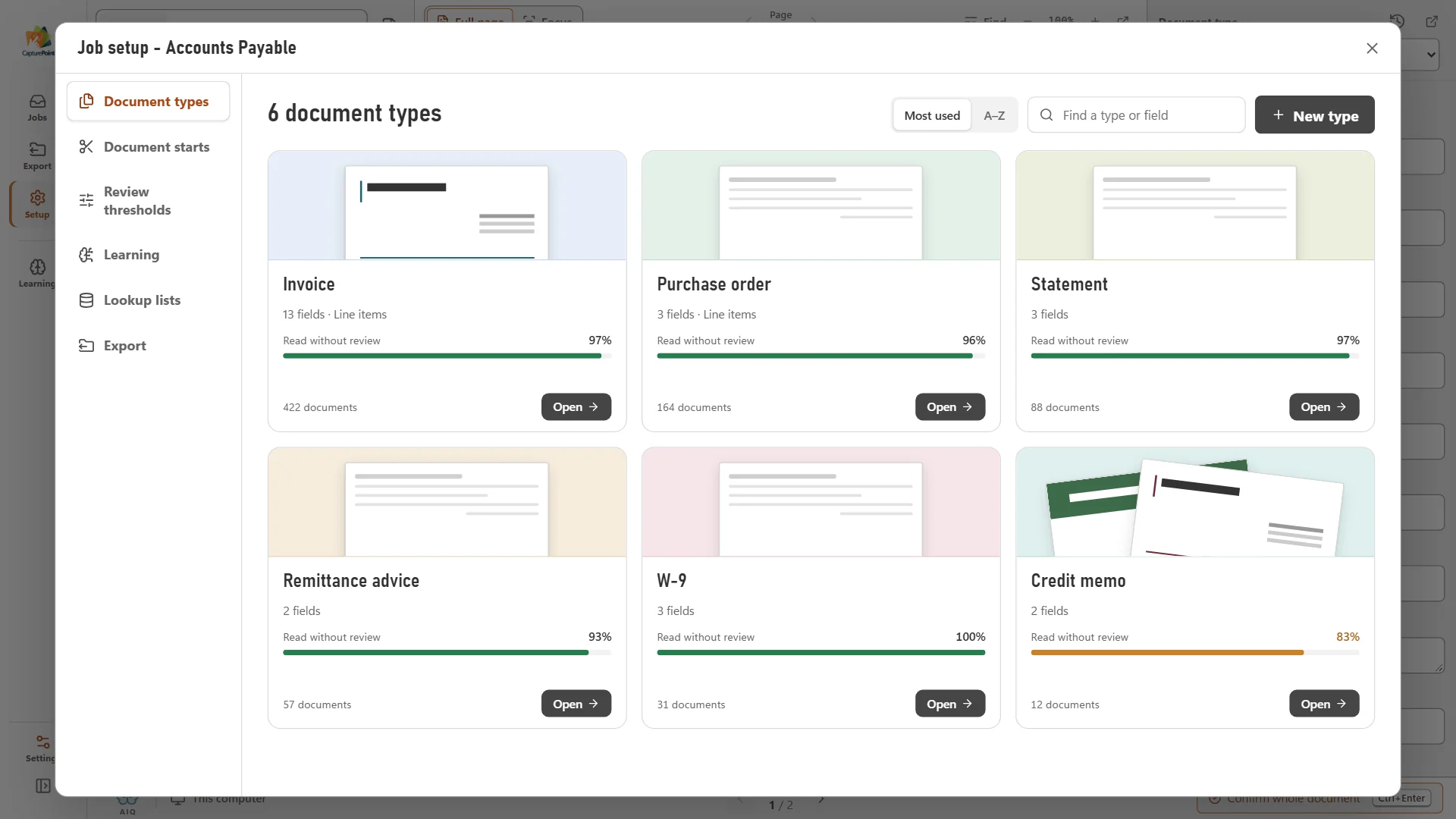
It finds where each document starts and what it is: invoice, purchase order, statement, W-9 and so on.
- 03
Read and check
Fields and line items are read on the PC. Anything it is unsure of waits for a quick review; Ctrl+Enter confirms.
- 04
File to SharePoint
The searchable PDF goes to your library in its own folders and name, with matching columns filled.
One invoice, start to finish
What SharePoint gets from a single invoice.
The sample invoice on the right was read on the PC: vendor, invoice number, date, purchase order, total and the line items. Here is where each part of it lands.
The file
With naming set to document type, then vendor, then date and number, it is filed under the folder you picked as:
Invoice / Northbridge Office Supply / 2026-09-04_INV-2401.pdf
Inside the PDF
The page image with its words as searchable text, plus the values: the file name as its title, Invoice as its subject and every field as “Name: value” in its keywords. They travel with the file wherever it is copied.
The library columns
If the library has these columns, they are filled in. Each value is converted to the column’s type.
| Column | Value | How it is stored |
|---|---|---|
| Vendor | Northbridge Office SupplyText | Text |
| Invoice Number | INV-2401Text | Text |
| Invoice Date | 09/04/2026Stored as a real date | Stored as a real date |
| Purchase Order | PO-1031Text | Text |
| Total | 480.00Stored as a number | Stored as a number |
Text and choice columns, number and currency, dates and yes/no all work. A printed $1,234.50 arrives in a number column as 1234.50.


Made for how Microsoft 365 teams already work.
- Sign in with a Microsoft 365 work or school account, on Microsoft’s own sign-in page in your browser. Multi-factor prompts and an administrator’s approval finish there.
- Pick a library or folder from your OneDrive and the SharePoint sites you follow, or search for another site. Make a new folder right in the picker.
- Names are cleaned to SharePoint’s rules first, so a stray character in a vendor name does not stop the upload.
- Test delivery puts a small PDF in the library and removes it, so you know the account can write there before real documents go.
- Documents go straight from the PC to Microsoft 365. There is no Ademero server in between.
- The job’s main export still happens too: a folder on your network or Content Central keeps its copy, and SharePoint gets the same PDF.
Setting it up for the first time?
Our step-by-step guide covers choosing the site and library, creating columns that match your fields, who should sign in, and the mistakes that cause most cleanup later.
Questions about SharePoint and OneDrive
Does it work with a personal OneDrive?
No. CapturePoint 6 signs in to Microsoft 365 with a work or school account, so it reaches SharePoint and OneDrive for business. Personal Microsoft accounts are not supported.
Does it work with Microsoft Teams?
CapturePoint 6 sends to SharePoint and OneDrive; there is no separate Teams connector. A team’s files in Teams are kept in that team’s SharePoint site, so its document library can be picked like any other site the account can reach.
Do I have to create the SharePoint columns?
Yes. CapturePoint fills columns that already exist in the library and whose name matches a field, by display name or internal name, capitals ignored. It does not add columns. A field with no matching column is skipped and the file is filed either way.
Can invoices and purchase orders go to different places?
Each job sends to one library or folder, and its naming builds the folders under it, so every document type can have its own folder. For separate libraries, use separate jobs.
Is there a server to install, or anything to add to SharePoint?
No server. CapturePoint 6 runs on a Windows 10 or 11 PC and sends with the Microsoft 365 account you sign in with. Some organizations ask an administrator to approve a new app the first time; the sign-in waits up to 40 minutes for that and for multi-factor prompts.
What if the PC is off or the internet drops?
Documents wait and nothing is lost. CapturePoint tries again on its own while it is open, picks up the next time it starts, and never sends the same document twice.
Keep reading
- Guide: scan to SharePoint or OneDriveThe full setup, step by step, with pitfalls to avoid.
- CapturePoint 6Scanning, reading, review and learning on your own PC.
- Every CapturePoint 6 destinationFolders, Content Central, Google Drive, Dropbox, Nucleus One.
- CapturePoint help libraryHow-to articles at help.ademero.com.
Watch a stack of paper turn into a filled-in library.
Download CapturePoint 6 and try the accounts payable sample job, or book a free demo and we will connect it to your SharePoint with you.