Buyer guide · Accounts payable
Invoice OCR: how invoice data extraction works, and how to choose a tool
What the software actually does with an invoice, which fields and line items matter, how to tell whether it is accurate, and the questions to ask before you buy.
For AP leads, controllers and office managers who are tired of retyping invoices, and the IT person who has to approve the tool.
Invoice OCR is shorthand. OCR (optical character recognition) only turns a picture of a page into text. What an AP team wants is the next step: knowing that INV-2401 is the invoice number, Northbridge Office Supply is the vendor and 480.00 is the total, and getting those values into the right place without typing them. That is invoice data extraction, and it is where tools differ.
What invoice OCR does, step by step
Whatever the product, the same jobs happen in roughly this order:
- 01
Intake
Paper goes through a scanner; digital invoices arrive as PDF or image files. Good tools take both into the same job. - 02
Page cleanup and reading
Pages are straightened and read line by line. Barcodes are decoded. A PDF that seems to contain text deserves the same care, because many are scans with a poor text layer underneath. - 03
Separation and classification
A stack of 40 pages becomes the right number of documents, and each one is labelled: invoice, credit memo, statement, purchase order, W-9. A mis-split (two invoices stuck together) breaks everything after it. - 04
Field and line-item extraction
Header fields (vendor, numbers, dates, totals) and the line-item table are pulled out and shaped: dates as dates, money as money. - 05
Checks and confidence
The software checks its own work: required fields present, line math adds up, values in the expected format. Anything it is unsure of should wait for a person, with the reason shown. - 06
Review, then export
A person confirms or corrects what was flagged. The document is filed (usually as a searchable PDF) and the data goes where it is needed.
The fields that matter
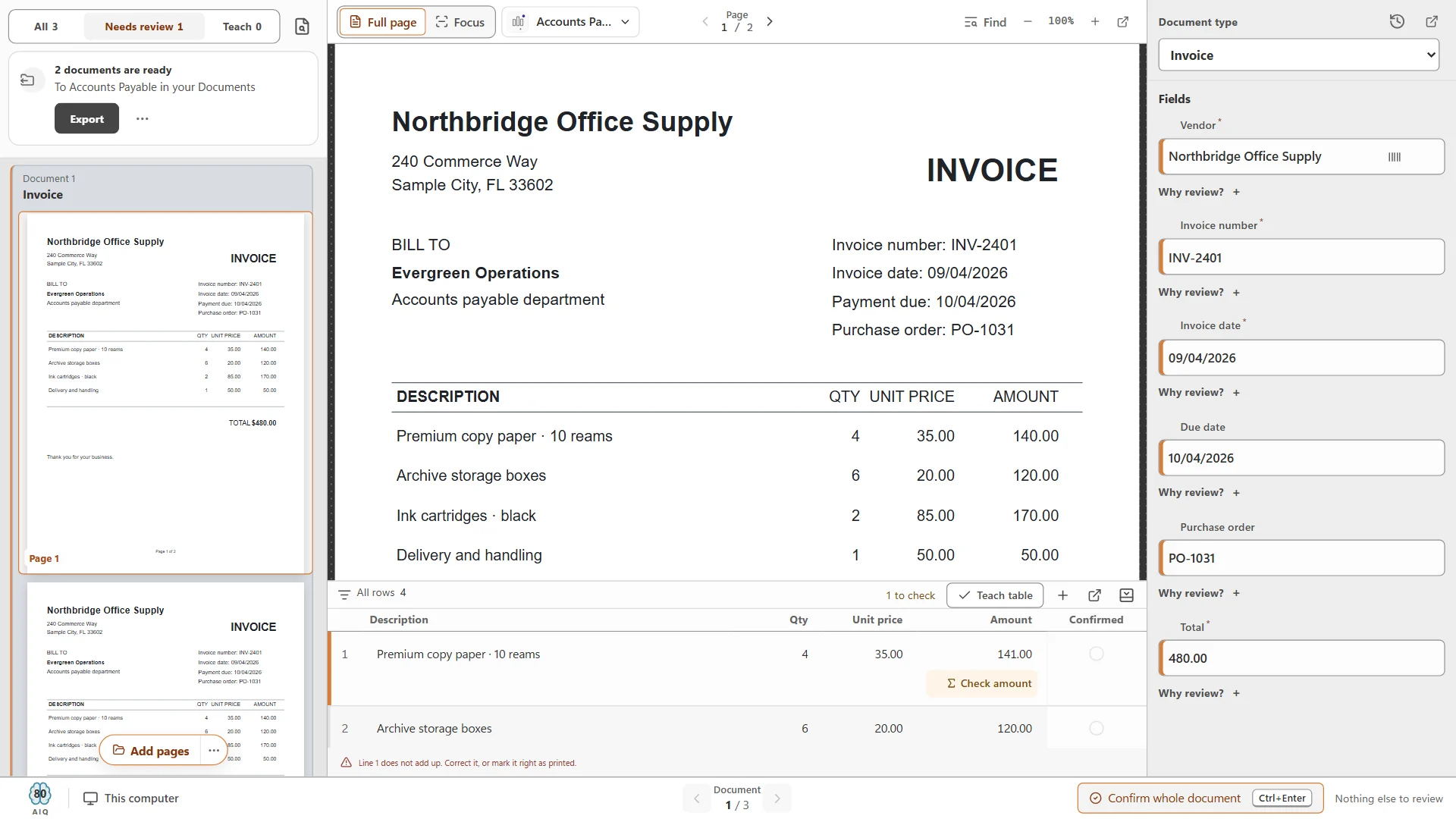
Capture what you will actually use. Every extra field is one more thing to review. For most AP teams, this is the working set, shown with the values from the sample invoice in the screenshots on this page:
Vendor
- Example:
- Northbridge Office Supply
- Why it matters:
- Matches the invoice to a vendor record; drives filing.
- What goes wrong:
- Remit-to name read instead of the vendor; small spelling differences. Check against your vendor list.
Invoice number
- Example:
- INV-2401
- Why it matters:
- Your duplicate check and the reference everyone searches by.
- What goes wrong:
- O read as 0, I as 1; a PO or account number picked up instead.
Invoice date
- Example:
- 09/04/2026
- Why it matters:
- Posting period and aging.
- What goes wrong:
- Day and month swapped on foreign vendors; ship date taken instead.
Due date or terms
- Example:
- 10/04/2026
- Why it matters:
- When to pay; early-payment discounts.
- What goes wrong:
- Often missing, or printed where the tool misses it, as on this sample. It should say “not found” and send it to review rather than guess.
Purchase order
- Example:
- PO-1031
- Why it matters:
- Matching against what was ordered.
- What goes wrong:
- Absent on many invoices; sometimes only on the line items.
Subtotal, tax, freight
- Example:
- Not on this invoice
- Why it matters:
- Tax reporting and checking the total.
- What goes wrong:
- Freight read as a line item, or tax missed when it sits in the footer.
Total
- Example:
- 480.00
- Why it matters:
- What you pay, and the check on everything above it.
- What goes wrong:
- Balance due or amount paid taken instead of the invoice total.
Currency
- Example:
- Not printed
- Why it matters:
- Needed when any vendor bills in another currency.
- What goes wrong:
- 1.250,00 read as 1.25 when the separator convention is not understood.
| Field | Example | Why it matters | What goes wrong |
|---|---|---|---|
| Vendor | Northbridge Office Supply | Matches the invoice to a vendor record; drives filing. | Remit-to name read instead of the vendor; small spelling differences. Check against your vendor list. |
| Invoice number | INV-2401 | Your duplicate check and the reference everyone searches by. | O read as 0, I as 1; a PO or account number picked up instead. |
| Invoice date | 09/04/2026 | Posting period and aging. | Day and month swapped on foreign vendors; ship date taken instead. |
| Due date or terms | 10/04/2026 | When to pay; early-payment discounts. | Often missing, or printed where the tool misses it, as on this sample. It should say “not found” and send it to review rather than guess. |
| Purchase order | PO-1031 | Matching against what was ordered. | Absent on many invoices; sometimes only on the line items. |
| Subtotal, tax, freight | Not on this invoice | Tax reporting and checking the total. | Freight read as a line item, or tax missed when it sits in the footer. |
| Total | 480.00 | What you pay, and the check on everything above it. | Balance due or amount paid taken instead of the invoice total. |
| Currency | Not printed | Needed when any vendor bills in another currency. | 1.250,00 read as 1.25 when the separator convention is not understood. |
Mark which fields are required. A required field that is missing should always stop the invoice for review; an optional field the tool could not find should be flagged but not hold up the rest of the batch. The due date in the review screen further down is an example: it is printed on the invoice (10/04/2026), but CapturePoint did not find it, so it waits for review instead of being guessed.
Do you need line items?
Line items are the table in the middle of the invoice: description, quantity, unit price and amount for each row. You need them if you match invoices to purchase orders line by line, code different lines to different GL accounts or jobs, or track what you pay per item. If you only post one total per invoice, header fields may be enough, and they are easier to get right.
Line items are also the hardest part to extract well: wrapped descriptions, rows that are really subtotals, tables that run onto a second page. Our guide to invoice line item extraction covers what good looks like and how to check it.
How to judge accuracy (without trusting a percentage)
Most vendors quote an accuracy number. None of those numbers were measured on your invoices. Measure it yourself during a trial; it takes an afternoon.
Build a test set
Pull a few weeks of real invoices: your top vendors, a sample of one-off vendors, a few faxed or crooked scans, a credit memo, a statement that should not be treated as an invoice, and your longest multi-page invoice. Type the correct answers for the fields you care about into a spreadsheet before you start, so you are scoring against truth and not against what the tool showed you.
Count the three outcomes that matter
Right, not flagged
- What it means:
- The value was correct and nobody had to look.
- How much it costs you:
- Nothing. This is the time you save.
Flagged for review
- What it means:
- The tool was unsure and asked. Right or wrong, a person checks it.
- How much it costs you:
- A few seconds per field. Acceptable.
Wrong, not flagged
- What it means:
- The tool was confident and wrong. Nobody looks.
- How much it costs you:
- A wrong payment, a duplicate, a bad posting. This is the number to drive to zero.
| Outcome | What it means | How much it costs you |
|---|---|---|
| Right, not flagged | The value was correct and nobody had to look. | Nothing. This is the time you save. |
| Flagged for review | The tool was unsure and asked. Right or wrong, a person checks it. | A few seconds per field. Acceptable. |
| Wrong, not flagged | The tool was confident and wrong. Nobody looks. | A wrong payment, a duplicate, a bad posting. This is the number to drive to zero. |
A tool that is right 95% of the time but never says when it is unsure is worse than one that is right 90% of the time and flags every doubtful value. Ask to see how confidence works, whether you can set the bar per field, and what happens to a document that falls below it.
What good review looks like
Review is where your team will spend its time, so judge it as carefully as extraction. A good review screen puts the page, the fields and the line items side by side, says why each item is waiting, and lets you confirm a whole invoice with one keystroke.
Things to check in a trial:
- Does each flagged field say why it is waiting (missing, low confidence, failed a check)?
- Can you correct a value by clicking the right text on the page, rather than retyping it?
- Does the tool learn from the correction, so the same vendor’s next invoice needs less review?
- Can a supervisor see what was confirmed automatically and send it back for a person to check?
In CapturePoint 6, confirming documents also re-checks the ones still waiting: when the work you confirmed makes others pass your review thresholds, they clear on their own, and one click puts them back in review if you would rather look.
Local vs cloud processing
Where the reading happens is a real decision, not a detail. Invoices carry bank details, tax IDs and prices you may not want on someone else’s servers, and some organizations have policies that settle the question before you start.
Where invoices are read
- Local (on your PC):
- On your own Windows PC. Documents do not leave for recognition.
- Cloud service:
- On the provider’s servers. Documents are uploaded.
Setup
- Local (on your PC):
- Install software; the first run may download large components.
- Cloud service:
- Sign up and send documents. Nothing to install.
Scanning paper
- Local (on your PC):
- Natural fit: the scanner is plugged into the same PC.
- Cloud service:
- Scan to a file first, then send it in.
Getting data out
- Local (on your PC):
- Files and folders on your network, or a connector to your systems.
- Cloud service:
- Download, SFTP, webhook or API, which suits developers and automation.
Speed
- Local (on your PC):
- Depends on the PC; a graphics card helps.
- Cloud service:
- Depends on the service and your upload.
Questions for IT
- Local (on your PC):
- Hardware, Windows version, where exports land.
- Cloud service:
- Data location, retention on the provider side, the provider’s security reviews.
| Local (on your PC) | Cloud service | |
|---|---|---|
| Where invoices are read | On your own Windows PC. Documents do not leave for recognition. | On the provider’s servers. Documents are uploaded. |
| Setup | Install software; the first run may download large components. | Sign up and send documents. Nothing to install. |
| Scanning paper | Natural fit: the scanner is plugged into the same PC. | Scan to a file first, then send it in. |
| Getting data out | Files and folders on your network, or a connector to your systems. | Download, SFTP, webhook or API, which suits developers and automation. |
| Speed | Depends on the PC; a graphics card helps. | Depends on the service and your upload. |
| Questions for IT | Hardware, Windows version, where exports land. | Data location, retention on the provider side, the provider’s security reviews. |
Neither is better in general. Local suits teams that scan paper, want documents to stay on premises, or work under policies that limit cloud processing. Cloud suits teams whose invoices already arrive digitally and who want the data delivered into other systems automatically.
Buyer checklist: questions to ask any invoice OCR vendor
Use this in demos and trials. A good vendor will answer every one on your documents, not theirs.
Can I try it on my own invoices before I buy?
A trial with sample data only proves the samples work.What happens with a vendor it has never seen?
Templates per vendor, or learning from examples? How many examples?Does it split a mixed stack into documents and recognize each type?
Invoices, credit memos, statements and W-9s often arrive together.Which header fields and line-item columns can it capture?
Can I add my own fields and shape them as dates, money or numbers?Does it check line-item math and flag what does not add up?
How does it show confidence, and can I set the review bar per field?
Can it check values against my own lists, such as my vendor list?
How fast is review: one screen, keyboard confirm, click-to-correct?
Does it learn from corrections, and can I see what it learned?
Where is my data processed and stored?
On my PC, in my network, or in the provider’s cloud? For how long?What does it produce?
Searchable PDF, PDF/A for records, a data file, and named folders or a document system.How does it get data into my accounting system or document storage?
How is it priced?
Per page, per document, per user or per station? What happens in a heavy month?
Setting up capture for the first time? The AP document capture setup checklist walks through intake, scanner settings, separation, naming and rollout.
Where Ademero fits (and where it does not)
CapturePoint 6 is our invoice capture for Windows PCs. It scans with TWAIN scanners or imports PDF, TIFF, JPEG, PNG, BMP and GIF files, splits stacks into documents and recognizes their types, extracts fields and line-item tables, checks line-item math and flags inconsistencies for review, and can check and fill values from your own lookup lists, such as your vendor list. Reading and extraction happen locally on the PC; a graphics card is optional. You can point it at a folder of sample invoices and it sets up the job itself, and it learns from every confirmation and correction.
Finished invoices go to folders with automatic folder and file naming (a searchable PDF, optional PDF/A, a data file with every captured value and a text file) or into Content Central. A job can also send each finished PDF to SharePoint or OneDrive (Microsoft 365 work or school accounts), Google Drive, Dropbox or Nucleus One. Setup and how-to articles live in the CapturePoint help library.
Paige is the cloud option. You send in documents and get clean data back; it learns from a few samples, splits, sorts and reads documents, pulls fields and line items, and delivers by download, SFTP or webhook. It runs on Google Cloud. See the Paige help library for connection guides.
Neither product is a full payables suite. If you need invoice approvals, three-way matching and payments in one system, use your accounting system or an AP platform for that part, and use CapturePoint 6 or Paige to feed it clean data and filed documents.
Questions
Is invoice OCR the same as AP automation?
No. Invoice OCR (more precisely, invoice data extraction) turns an invoice into checked data and a filed document. AP automation adds approvals, matching against purchase orders and receipts, and payment. Many teams start with extraction, because it removes the typing, and keep approvals and payment in their accounting system.
Do I need templates for every vendor?
Older tools did: you drew zones on one invoice per vendor and maintained them as layouts changed. Current tools learn layouts from examples. Ask any vendor what happens the first time a new supplier’s invoice arrives, and test it with a vendor the tool has never seen.
How many invoices should I test with?
Enough to cover your real mix: your top vendors by volume, a handful of one-off vendors, a few poor scans, a credit memo and your longest multi-page invoice. Fifty to a hundred well-chosen invoices tells you more than a thousand from one vendor.
Can it read handwritten notes on invoices?
Treat handwriting as a separate question and test it with your own samples. Approval stamps and handwritten GL codes vary widely, so most teams capture them in review or in their approval workflow rather than relying on extraction.
Related guides
- AP document capture: a setup checklistIntake, scanner settings, separation, fields, exceptions, naming, roles and rollout.
- Invoice line item extraction: getting the table rightWhy line items are hard, math checks, exception review and multi-page tables.
- Searchable PDF vs PDF/AWhat each one is, and which to use for working files, archives and records.
Try it on your own invoices
Run your own invoices through CapturePoint 6.
It splits the stack, reads the fields and line items on your own Windows PC, checks the line math and shows you why anything waits. The accounts payable sample job is ready the first time you open it.
Windows 10 and 11 (64-bit). No sign-up and no credit card; sample jobs included. Priced per scanning station, with unlimited scanning. Get pricing
Invoices arrive as files rather than paper, and you would rather not install anything? Paige is our cloud service: send in documents, get clean data back by download, SFTP or webhook.
Start free with Paige