Buyer guide · Accounts payable
Invoice line item extraction: why it is hard and how to get it right
Header fields are the easy part. The table in the middle of the invoice is where extraction tools are won or lost. Here is what goes wrong, what good looks like, and how to check it with arithmetic instead of trust.
For AP teams that match invoices to purchase orders, code lines to different accounts or jobs, or track unit prices, and anyone evaluating a tool that claims to read line items.
Every invoice has a vendor, a number, a date and a total. Getting those right is mostly a solved problem. The line items (each row of description, quantity, unit price and amount) are different: no two vendors lay them out the same way, and a single misread digit can change what you pay.
When you need line items, and when you do not
Capture line items when you:
- match invoices to purchase orders or receipts line by line,
- code different lines to different GL accounts, departments, jobs or properties,
- track unit prices over time to catch price creep, or
- need freight, fees or tax broken out from the goods.
If you post one total per invoice to one account, skip them. Header-level capture is faster to review and you can always add line items later for the vendors where they matter.
Why line items are hard
No standard layout
- What it looks like:
- Columns in any order, with or without ruling lines, sometimes no header row.
- What a tool must do:
- Find the table and its columns by content, not fixed positions.
Wrapped descriptions
- What it looks like:
- One item’s description runs over two or three lines.
- What a tool must do:
- Join the lines into one row instead of inventing extra rows.
Rows that are not items
- What it looks like:
- Section headings, subtotals, “continued”, notes, serial numbers under an item.
- What a tool must do:
- Leave them out, or attach them to the item they belong to.
Fees and adjustments
- What it looks like:
- Freight, fuel surcharge, discounts, deposits, negative lines in parentheses.
- What a tool must do:
- Keep the sign: (12.50) is minus 12.50.
Number formats
- What it looks like:
- 1,250.00 and 1.250,00; quantities with units like 2 EA or 1.5 HR.
- What a tool must do:
- Read the amount as an amount and keep the unit separate.
Scan quality
- What it looks like:
- Skewed pages, faint dot-matrix print, a coffee ring across a column.
- What a tool must do:
- Flag low-confidence cells instead of guessing.
Tables across pages
- What it looks like:
- Headers repeated on page 2, “carried forward” subtotals.
- What a tool must do:
- One continuous table, with repeated headers and carried subtotals removed.
| Problem | What it looks like | What a tool must do |
|---|---|---|
| No standard layout | Columns in any order, with or without ruling lines, sometimes no header row. | Find the table and its columns by content, not fixed positions. |
| Wrapped descriptions | One item’s description runs over two or three lines. | Join the lines into one row instead of inventing extra rows. |
| Rows that are not items | Section headings, subtotals, “continued”, notes, serial numbers under an item. | Leave them out, or attach them to the item they belong to. |
| Fees and adjustments | Freight, fuel surcharge, discounts, deposits, negative lines in parentheses. | Keep the sign: (12.50) is minus 12.50. |
| Number formats | 1,250.00 and 1.250,00; quantities with units like 2 EA or 1.5 HR. | Read the amount as an amount and keep the unit separate. |
| Scan quality | Skewed pages, faint dot-matrix print, a coffee ring across a column. | Flag low-confidence cells instead of guessing. |
| Tables across pages | Headers repeated on page 2, “carried forward” subtotals. | One continuous table, with repeated headers and carried subtotals removed. |
What good extraction looks like
One row per item, in the printed order
The row count matches what you count on the page.The columns you need, mapped consistently
Typically description, quantity, unit price and amount; often item or part number, unit of measure and PO line.Values shaped correctly
Quantities and money are numbers, not text; negative lines stay negative.Non-item rows handled on purpose
Freight and tax either captured as their own lines or kept out, the same way every time.Every row checked
Arithmetic that fails is flagged, with the row and the reason.The table and header agree
The lines add up to the subtotal or total printed at the bottom.
Math checks: a worked example
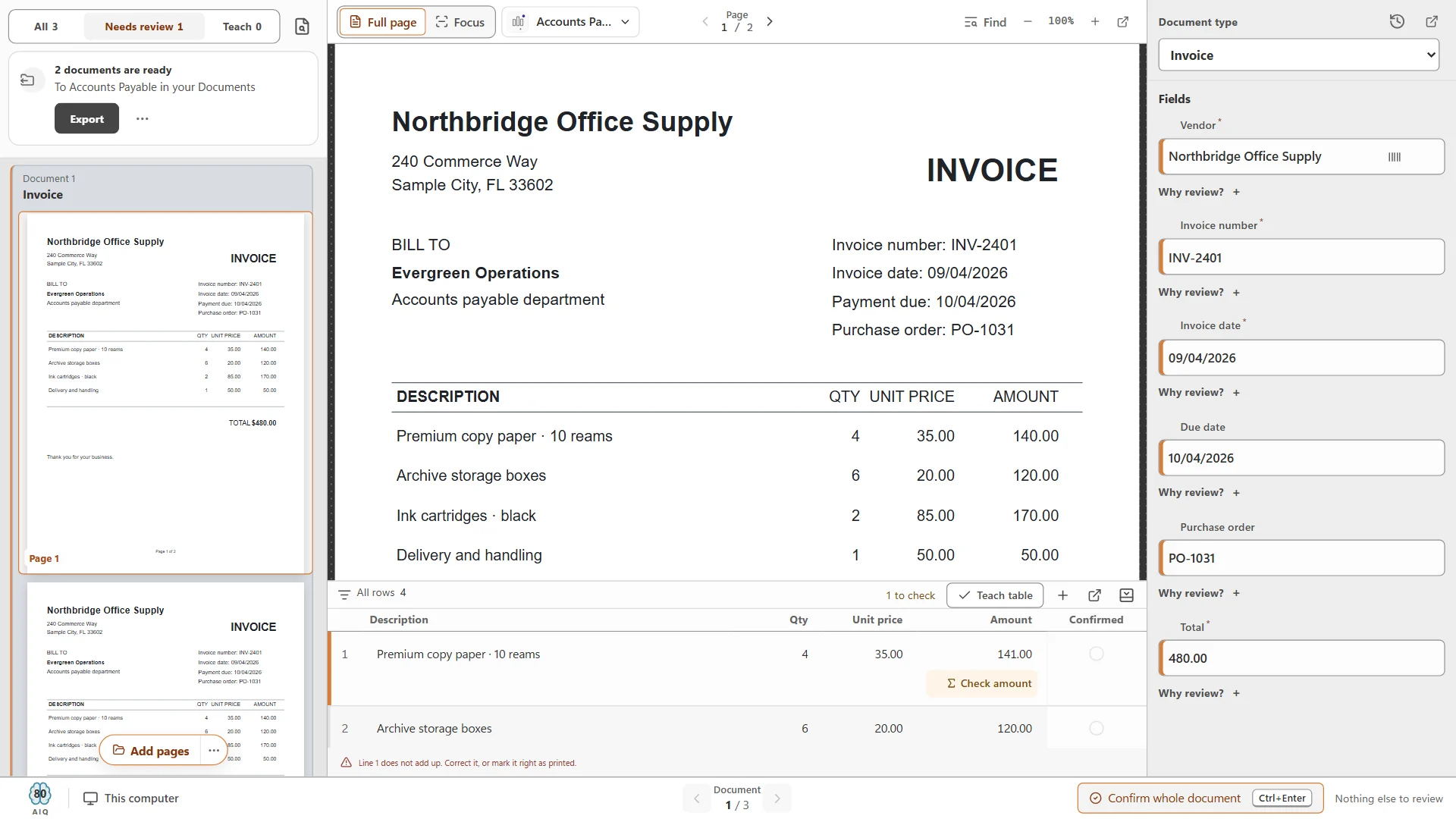
Arithmetic is the best friend of line-item extraction, because it lets software (and you) check a reading without looking at the page. Take the sample invoice from Northbridge Office Supply shown below:
1
- Description:
- Premium copy paper · 10 reams
- Qty:
- 4
- Unit price:
- 35.00
- Amount:
- 140.00
- Check:
- 4 × 35.00 = 140.00
2
- Description:
- Archive storage boxes
- Qty:
- 6
- Unit price:
- 20.00
- Amount:
- 120.00
- Check:
- 6 × 20.00 = 120.00
3
- Description:
- Ink cartridges · black
- Qty:
- 2
- Unit price:
- 85.00
- Amount:
- 170.00
- Check:
- 2 × 85.00 = 170.00
4
- Description:
- Delivery and handling
- Qty:
- 1
- Unit price:
- 50.00
- Amount:
- 50.00
- Check:
- 1 × 50.00 = 50.00
Total
- Amount:
- 480.00
- Check:
- 140 + 120 + 170 + 50 = 480.00
| Line | Description | Qty | Unit price | Amount | Check |
|---|---|---|---|---|---|
| 1 | Premium copy paper · 10 reams | 4 | 35.00 | 140.00 | 4 × 35.00 = 140.00 |
| 2 | Archive storage boxes | 6 | 20.00 | 120.00 | 6 × 20.00 = 120.00 |
| 3 | Ink cartridges · black | 2 | 85.00 | 170.00 | 2 × 85.00 = 170.00 |
| 4 | Delivery and handling | 1 | 50.00 | 50.00 | 1 × 50.00 = 50.00 |
| Total | 480.00 | 140 + 120 + 170 + 50 = 480.00 |
There are two checks worth running on every invoice:
- 01
Row check: quantity × unit price = amount
Allow a cent of rounding. A row that fails is either a misread or a vendor error, and both deserve a look. - 02
Table check: the lines add up to the total
Sum the amounts and compare with the subtotal, or with the total after tax, freight and discounts. This catches a missed or duplicated row, which a row check cannot.
Now suppose the first amount is misread as 141.00. The row check fails (4 × 35.00 is 140.00), and the lines would sum to 481.00 against a printed total of 480.00. Without a check, that extra dollar goes straight into your books.
Exception review that does not slow you down
Line items generate more exceptions than header fields simply because there are more values. Review has to be quick or the team will stop doing it properly. Look for:
- Only the problem rows highlighted, with the reason (does not add up, amount missing, low confidence), and a filter to show just those rows.
- The page and the table side by side, so you can compare a row without hunting.
- Row editing: add a missed row, delete an invented one, fix one cell.
- A way to teach the table, so the next invoice from the same vendor is read correctly.
- One keystroke to confirm the whole document once it is right.
In CapturePoint 6 the table under the page shows a count such as “1 to check” or “1 amount missing”, rows can be added and confirmed, Teach table teaches the layout, and Ctrl+Enter confirms the whole document. Each confirmation teaches the job, so the same vendor’s next invoice needs less attention.
How to handle multi-page tables
Long invoices (distributors, utilities, freight, anything with dozens of lines) are where tools differ most. Most of the work is making sure the pages arrive together and the table is read as one.
- 01
Keep the pages together
Separation comes first. If page 2 is split off as its own document, no table logic can recover. Check multi-page invoices specifically in any pilot; separator sheets are a safe fallback for the vendors that cause trouble. - 02
Expect repeated headers
Many vendors print the column headers again at the top of each page. They must not become rows. - 03
Drop carried-forward lines
“Subtotal carried forward” and “brought forward” lines repeat amounts already counted. Including them double-counts. - 04
Find the real totals
Totals are usually on the last page, and some vendors also print page totals. Your table check should compare against the invoice total, not a page total. - 05
Count the rows
The quickest sanity check on a long table: the extracted row count against the last line number on the invoice.
Test this on your own longest invoices before you buy anything. Do it in the CapturePoint 6 free trial as well: compare the row count and the sum against the printed total, and you will know in minutes how it handles your vendors.
How to test a tool on line items
Pick ten invoices with tables that worry you
Wrapped descriptions, discounts, freight lines, credit memos, two or more pages.Write down the correct row count and total for each
Run them and compare row counts first
Missing or extra rows are the most expensive errors.Then compare amounts, and check that every bad row was flagged
Correct one invoice per vendor, then run the next one
Does the tool learn, or make the same mistake again?Time the review of a long invoice end to end
Check what the exported data looks like
One row per line, with the header values repeated or linked, in a format your accounting system can import.
Where to go next:
- Header fields, accuracy and local vs cloud: the invoice OCR buyer guide.
- Setting up the whole AP flow: the AP document capture checklist.
- CapturePoint setup articles: the CapturePoint help library.
Related guides
- Invoice OCR: how invoice data extraction worksFields, line items, accuracy, review, local vs cloud, and a buyer checklist.
- AP document capture: a setup checklistIntake, scanner settings, separation, fields, exceptions, naming, roles and rollout.
- Searchable PDF vs PDF/AWhat each one is, and which to use for working files, archives and records.
Try it on your own invoices
See the line-item math check on a sample invoice, then on yours.
CapturePoint 6 extracts the line-item table on your own Windows PC, checks each line and holds anything that does not add up for review. Bring your longest invoices to the free trial.
Windows 10 and 11 (64-bit). No sign-up and no credit card; sample jobs included. Priced per scanning station, with unlimited scanning. Get pricing